# Manage two-factor authentication
This topic describes how to enable and disable Replicated two-factor authentication for individual and team accounts in the Replicated Vendor Portal.
Alternatively, you can use Google Authentication or SAML Authentication to access the Vendor Portal. For more information about those options, see [Managing Google Authentication](team-management-google-auth) and [Managing SAML Authentication](team-management-saml-auth).
## About two-factor authentication
Two-factor authentication (2FA) provides additional security by requiring two methods of authentication to access resources and data. When you enable the 2FA option in the Vendor Portal, you are asked to provide an authentication code and your password during authentication. Replicated uses the open algorithm known as the Time-based One-time Password (TOTP 7), which is specified by the Internet Engineering Task Force (IETF) under RFC 6238 2.
## Limitation
If SAML Authentication or Google Authentication is configured and 2FA is also enabled, then 2FA is bypassed. You can leave 2FA enabled, but you are not prompted to enter a code when logging in.
## Enable 2FA on individual accounts
If you are an administrator or if 2FA is enabled for your team, you can enable 2FA on your individual account.
To enable two-factor authentication on your individual account:
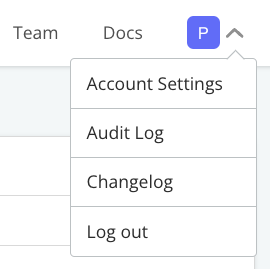
1. In the [Vendor Portal](https://vendor.replicated.com), click **Account Settings** from the dropdown list in the upper right corner of the screen.
 [View a larger version of this image](/images/vendor-portal-account-settings.png)
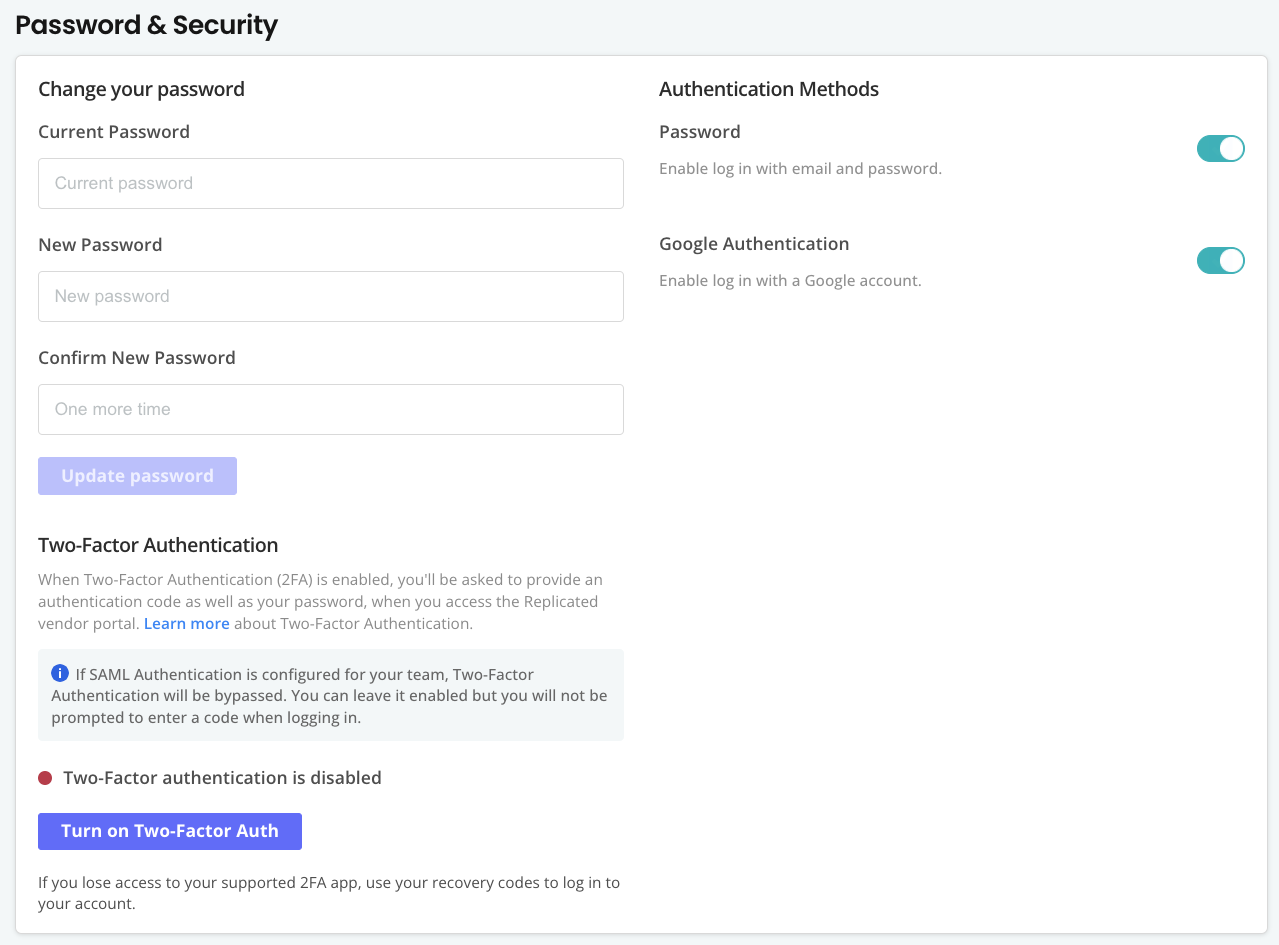
1. In the **Two-Factor Authentication** pane, click **Turn on two-factor authentication**.
[View a larger version of this image](/images/vendor-portal-account-settings.png)
1. In the **Two-Factor Authentication** pane, click **Turn on two-factor authentication**.
 [View a larger version of this image](/images/vendor-portal-password-2fa.png)
1. In the **Confirm password** dialog, enter your Vendor Portal account password. Click **Confirm password**.
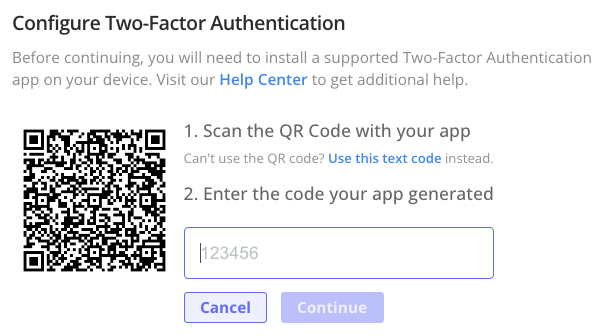
1. Scan the QR code that displays using a supported two-factor authentication application on your mobile device, such as Google Authenticator. Alternatively, click **Use this text code** in the Vendor Portal to generate an alphanumeric code that you enter in the mobile application.
[View a larger version of this image](/images/vendor-portal-password-2fa.png)
1. In the **Confirm password** dialog, enter your Vendor Portal account password. Click **Confirm password**.
1. Scan the QR code that displays using a supported two-factor authentication application on your mobile device, such as Google Authenticator. Alternatively, click **Use this text code** in the Vendor Portal to generate an alphanumeric code that you enter in the mobile application.
 [View a larger version of this image](/images/vendor-portal-scan-qr.png)
Your mobile application displays an authentication code.
1. Enter the authentication code in the Vendor Portal.
Two-factor authentication is enabled and a list of recovery codes is displayed at the bottom of the **Two-Factor Authentication** pane.
1. Save the recovery codes in a secure location. These codes can be used any time (one time per code), if you lose your mobile device.
1. Log out of your account, then log back in to test that it is enabled. You are prompted to enter a one-time code generated by the application on your mobile device.
## Disable 2FA on individual accounts
To disable two-factor authentication on your individual account:
1. In the [Vendor Portal](https://vendor.replicated.com), click **Account Settings** from the dropdown list in the upper right corner of the screen.
[View a larger version of this image](/images/vendor-portal-account-settings.png)
1. In the **Two-Factor Authentication** pane, click **Turn off two-factor authentication**.
1. In the **Confirm password** dialog, enter your Vendor Portal account password. Click **Confirm password**.
## Enable or disable 2FA for a team
As an administrator, you can enable and disable 2FA for teams. You must first enable 2FA on your individual account before you can enable 2FA for teams. After you enable 2FA for your team, team members can enable 2FA on their individual accounts.
To enable or disable 2FA for a team:
1. In the [Vendor Portal](https://vendor.replicated.com), select the **Team** tab, then select **Multifactor Auth**.
[View a larger version of this image](/images/vendor-portal-scan-qr.png)
Your mobile application displays an authentication code.
1. Enter the authentication code in the Vendor Portal.
Two-factor authentication is enabled and a list of recovery codes is displayed at the bottom of the **Two-Factor Authentication** pane.
1. Save the recovery codes in a secure location. These codes can be used any time (one time per code), if you lose your mobile device.
1. Log out of your account, then log back in to test that it is enabled. You are prompted to enter a one-time code generated by the application on your mobile device.
## Disable 2FA on individual accounts
To disable two-factor authentication on your individual account:
1. In the [Vendor Portal](https://vendor.replicated.com), click **Account Settings** from the dropdown list in the upper right corner of the screen.
[View a larger version of this image](/images/vendor-portal-account-settings.png)
1. In the **Two-Factor Authentication** pane, click **Turn off two-factor authentication**.
1. In the **Confirm password** dialog, enter your Vendor Portal account password. Click **Confirm password**.
## Enable or disable 2FA for a team
As an administrator, you can enable and disable 2FA for teams. You must first enable 2FA on your individual account before you can enable 2FA for teams. After you enable 2FA for your team, team members can enable 2FA on their individual accounts.
To enable or disable 2FA for a team:
1. In the [Vendor Portal](https://vendor.replicated.com), select the **Team** tab, then select **Multifactor Auth**.
 [View a larger image](/images/team-2fa-auth.png)
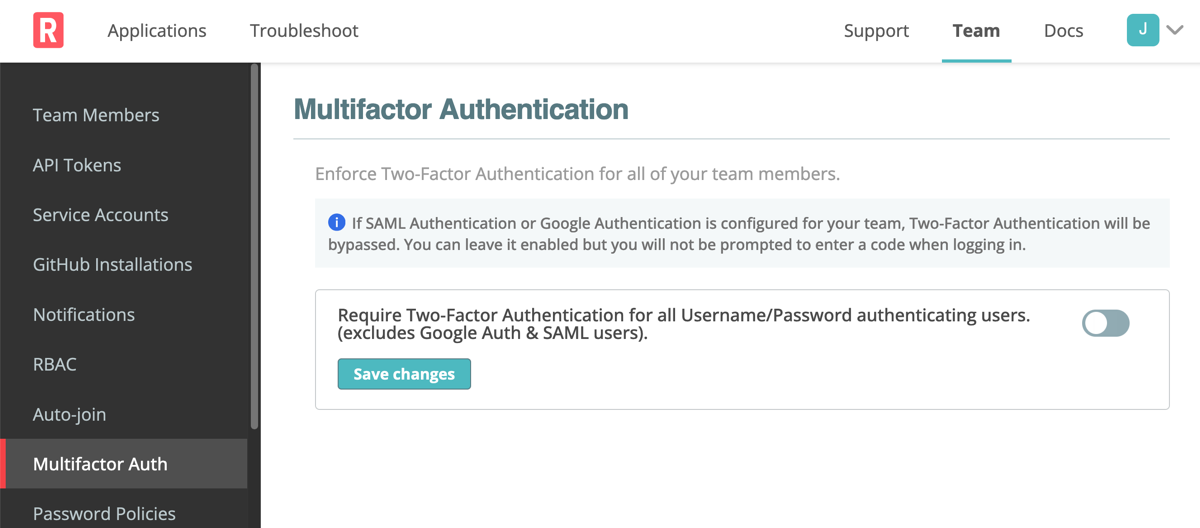
1. On the **Multifactor Authentication** page, do one of the following with the **Require Two-Factor Authentication for all Username/Password authenticating users** toggle:
- Turn on the toggle to enable 2FA
- Turn off the toggle to disable 2FA
1. Click **Save changes**.
[View a larger image](/images/team-2fa-auth.png)
1. On the **Multifactor Authentication** page, do one of the following with the **Require Two-Factor Authentication for all Username/Password authenticating users** toggle:
- Turn on the toggle to enable 2FA
- Turn off the toggle to disable 2FA
1. Click **Save changes**.